Ops: publish and share
- Role
- Ops
- Outcome
- Your site live, and the link shared; your feedback sent while it goes live
- Time box
- 8 minutes
Ops publishes your site. It saves your changes in a commit (a saved version with a short message), sends it to GitHub with a push, and tells you your live address.
Get ready 2:00 min
Ops publishes your site to GitHub. Two things before you start:
- Nothing private in your folder. Everything in your
portfoliofolder can go into your public repo, and it stays there even after you delete it. Ops lists every file before it publishes, and you read the list. - Your GitHub sign-in at hand: your username and password. The first push from your laptop may ask you to sign in. On a Mac or Linux, GitHub then wants a token; the next step shows how to make one.
Work with Ops 4:00 min
Ops leads you through this Block in the chat and says when it is done. Read this part first, then start Ops at its end, under Now start Ops. Keep this page open next to the chat.
Check the file list
Ops lists the files that changed (git status) and says what each one is. Every file should be in site/, or be design/brief.md or docs/spec.md. Your photo belongs there only as the small copy in site/assets/.
Ops names every file that does not belong. Move each one out of the folder, for example to your Documents folder:
In Finder, press Cmd+Shift+H (or menu Go → Home), then open portfolio. Drag the file onto Documents in the sidebar.
In File Explorer, click into the address bar, type %USERPROFILE%\portfolio and press Enter. Drag the file onto Documents in the left pane.
In Files, open Home, then portfolio. Drag the file onto Documents in the sidebar.
Then tell Ops you moved it. It checks the list again.
Say yes to publish
Ops runs the Check once more and asks: "Shall I publish these changes? Say yes." Say yes. It makes the commit and pushes it to GitHub. If it asks to run two git config commands, allow them.
Sign in if GitHub asks
The first push from your laptop may ask you to sign in to GitHub. Follow the tab for your system:
Ops reports could not read Username and tells you to ask the Instructor, or a field opens at the top of Antigravity IDE that starts with Git:. Do these steps yourself first. GitHub wants a token there, a long password that GitHub makes for you, not your account password.
- In Antigravity IDE, open a terminal with the menu Terminal → New Terminal. Paste this command (Cmd+V) and press Enter:
Terminal
git push- A field opens at the top of Antigravity IDE, starting with Git:. Not in the terminal: look up. If it asks for your username, type your GitHub username and press Enter. When it asks for your password, leave it open: the password is a token, which you make now.
- In Chrome, open github.com/settings/tokens/new: the link fills in the form for you. If GitHub first asks for your password, or for a code it emails you, give it. Scroll down, click Generate token and copy the token, which starts with
ghp_. GitHub shows it only once. - Back in Antigravity IDE, paste the token into the field at the top (Cmd+V) and press Enter. You see only dots: that is normal. It worked when the last line in the terminal ends in
main -> main.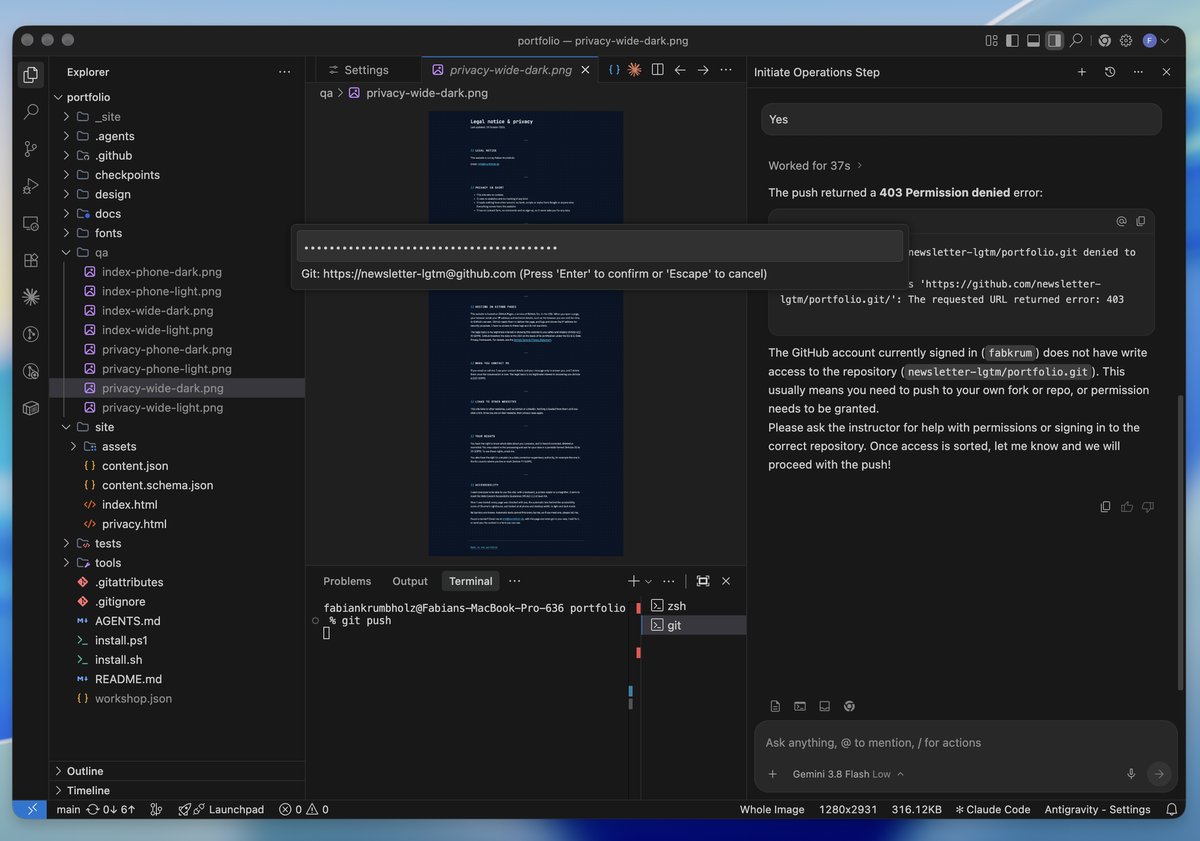
The field at the top of Antigravity IDE, not the terminal, asks for the token. Paste it there: you see only dots. Enter confirms. - Tell Ops in the chat that your push worked. It then waits until your site is live.
A window called Connect to GitHub opens. It may hide behind Antigravity IDE: look for it in the taskbar.
- Click Sign in with your browser.
- A browser opens, maybe Edge rather than Chrome. Sign in with the GitHub account that owns your repo. GitHub may email you a code to type in.
- If GitHub asks you to authorize the sign-in, click the green Authorize button.
- Go back to Antigravity IDE. Ops continues by itself. If it does not, tell it: "I signed in. Please push again."
Ops reports could not read Username and tells you to ask the Instructor, or a field opens at the top of Antigravity IDE that starts with Git:. Do these steps yourself first. GitHub wants a token there, a long password that GitHub makes for you, not your account password.
- In Antigravity IDE, open a terminal with the menu Terminal → New Terminal. Paste this command (Ctrl+Shift+V) and press Enter:
Terminal
git push- A field opens at the top of Antigravity IDE, starting with Git:. Not in the terminal: look up. If it asks for your username, type your GitHub username and press Enter. When it asks for your password, leave it open: the password is a token, which you make now.
- In Chrome, open github.com/settings/tokens/new: the link fills in the form for you. If GitHub first asks for your password, or for a code it emails you, give it. Scroll down, click Generate token and copy the token, which starts with
ghp_. GitHub shows it only once. - Back in Antigravity IDE, paste the token into the field at the top (Ctrl+V) and press Enter. You see only dots: that is normal. It worked when the last line in the terminal ends in
main -> main. - Tell Ops in the chat that your push worked. It then waits until your site is live.
Asked again at a later push? Do these steps again, with a new token.
Now start Ops
- In Antigravity IDE, start a new chat: click the + at the top right of the agent panel, not the one in the chat box.
- Check the model name at the bottom of the chat box: it says Gemini 3.8 Flash. If not, click it and pick Gemini 3.8 Flash.
Then type:
Agent chat
Start the Ops step.Ops then publishes your site and waits until it is live: Live and share below shows what you see.
Live and share 2:00 min
Wait until it is live
Ops waits until the new version is online, usually within a minute:
What you see (example)
Your site's address: https://luca-bianchi.github.io/portfolio/
An older version is online; the new one is on its way. Looking again in 10 seconds…
Your site is live. Open https://luca-bianchi.github.io/portfolio/ in Chrome and share the link.
It says that GitHub Pages is probably off? Repeat the Pages setting from Setup, then tell Ops done.
Share your link
- Open your address in Chrome and on your phone:
https://YOUR-USERNAME.github.io/portfolio/. - Show it to your neighbour, and look at theirs.
- Add it to the room's gallery: paste your address and click Add my site.
It appears on the Instructor's slides with the rest of the room. Changed your address? Send it again: the new one replaces the old one.
If something goes wrong
Ask your agent first. In a fresh chat, type the question below: it reads your repo and tells you what is done and what comes next. Got an error message? Paste it into the chat.
Agent chat
Where am I?"Permission denied" or "403" when pushing
Cause: you are signed in to GitHub with another account than the one that owns the repo.
Fix: raise your hand; the Instructor helps you switch accounts.
"'git' is not recognized", "command not found: git", "not a git repository", or a window about developer tools
Cause: Git is missing on your laptop, or you installed it after the Install script had copied your repo.
Fix, if Git is installed now: run your line from Run the Install script again, in a fresh terminal. It connects your portfolio folder to Git and keeps your files. Then start a fresh chat and type Start the Ops step.
Fix, if you have no administrator rights: publish in the browser.
- On github.com, open your repo
portfolio. Click Add file → Upload files. - Open your
portfoliofolder on your laptop, as in Check the file list. Drag the wholesitefolder onto the GitHub page and wait until the files are listed. - Click Commit changes. When the newest Deploy to GitHub Pages run in the Actions tab has a green tick, open your address.
"rejected" and "fetch first"
Cause: your repo on GitHub has a change your laptop does not have yet, for example an edit on github.com.
Fix: Ops fetches the change and pushes again. If it reports a conflict, ask the Instructor.
The live address shows an older version
Fix: wait a minute and reload. In your repo on GitHub, the tab Actions shows the newest Deploy to GitHub Pages run; it should get a green tick.
Fell behind?
The Ops Block's time is up and your site is not live yet?
- Ops still working? Keep its chat going: no checkpoint can publish for you.
- Your page is broken or missing? Stop Ops, run the checkpoint below, then type
Start the Ops step.in a fresh chat.
The Ops checkpoint is the same as QA's: it keeps your own content file, design brief and spec, and writes your legal page if you have none. It also resets your page to a ready-made one in the colours and fonts of your brief: what your own Developer and QA built is lost.
- Stop the agent in your old chat if it is still working: click the round button with the red square in the chat box.
- In Antigravity IDE, open a terminal with the menu Terminal → New Terminal. Paste this command (Cmd+V on a Mac, Ctrl+V on Windows, Ctrl+Shift+V on Linux) and press Enter:
Terminal · same on Mac, Windows and Linux
node tools/checkpoint.mjs opsUse the Block that has just ended, not the one that starts now.
It lists what it kept and what it changed. Nothing to change means you were already there.
Or start a fresh chat and let the agent run it:
Agent chat
Catch me up: the room just finished the Ops block.