Setup: your repo and your tools
- Block
- Setup: after the talk, before the first Role
- Outcome
- Your own repo, your tools installed, Antigravity IDE open
- Time box
- 11 minutes
These steps take you from your accounts and the installed Antigravity IDE (the prep page, checked on page 1) to your own repo, open in Antigravity IDE. Did them at home on the prep page? Then skip this page.
Click Next when a step works. Stuck? Click Stuck? at the top.
Copy the Template repo 1:30 min
The Template repo has what your agents need. Copy it into a repo of your own (your project folder on GitHub).
- Click the green button Use this template, then Create a new repository. You only see this button when you are signed in to GitHub with your own account. No green button? Click Sign in at the top right first.
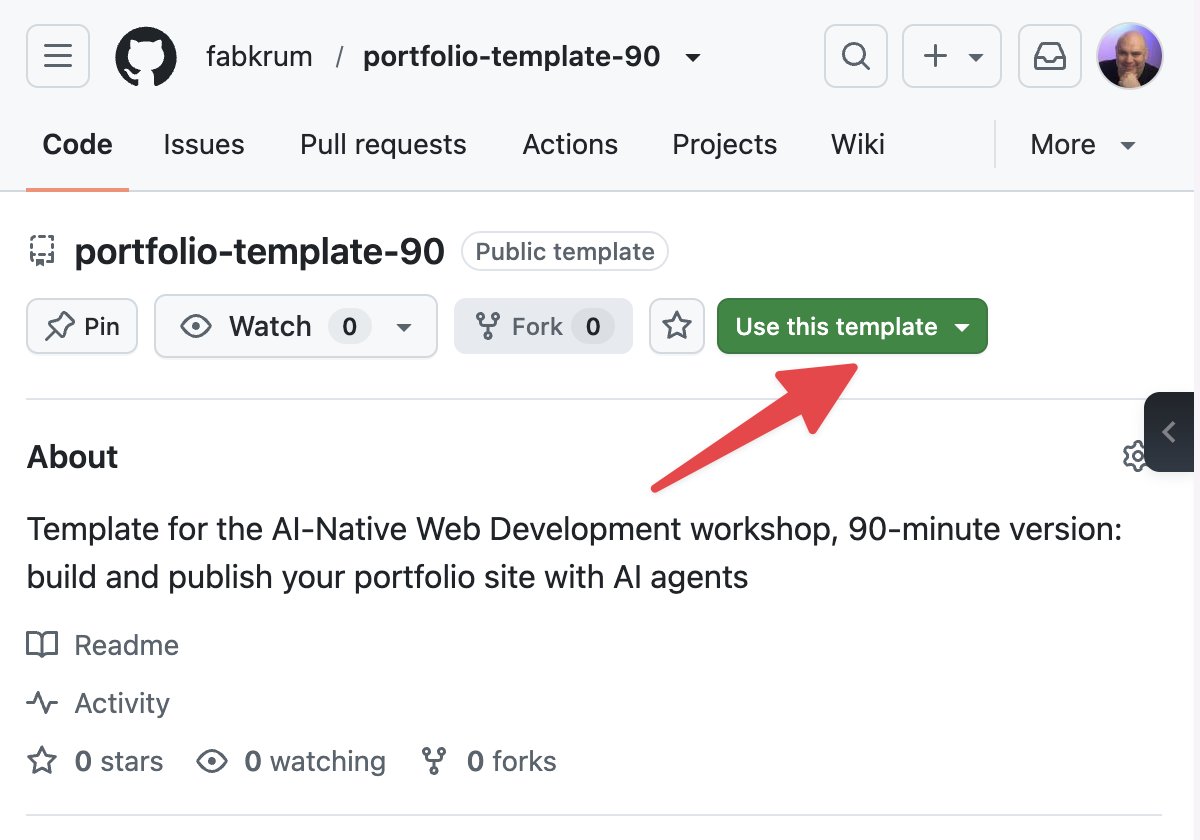
The green Use this template button sits under the repo name, next to the star. - Owner: your username. Repository name:
portfolio, exactly like this, in lowercase. - Choose Public: GitHub Pages is free only for public repos.
- Click Create repository.
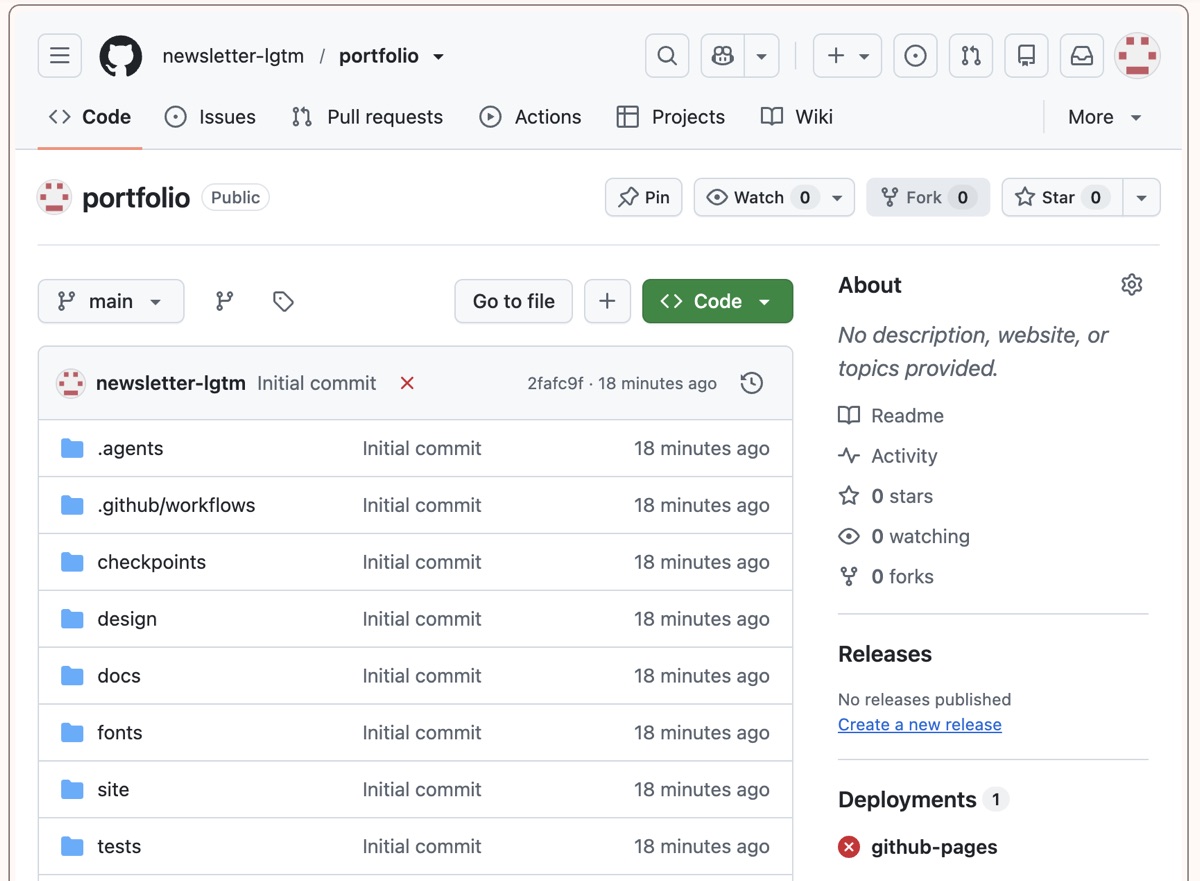
You know it worked when you are on github.com/YOUR-USERNAME/portfolio, and under the name it says "generated from fabkrum/portfolio-template".
Switch on GitHub Pages 2:00 min
GitHub Pages (GitHub's free website hosting) publishes your site.
- On your repo's page, click the tab Settings at the top, in the row with Code, Issues and Actions. In a narrow window it hides behind the … menu. Not the Settings in the menu under your picture: that one is for your account, and its Pages page talks about Verified domains. If you see that, go back to
github.com/YOUR-USERNAME/portfolio. - In the menu on the left, click Pages.
- Under Build and deployment, set Source to GitHub Actions. Do not click the Configure buttons GitHub then suggests.
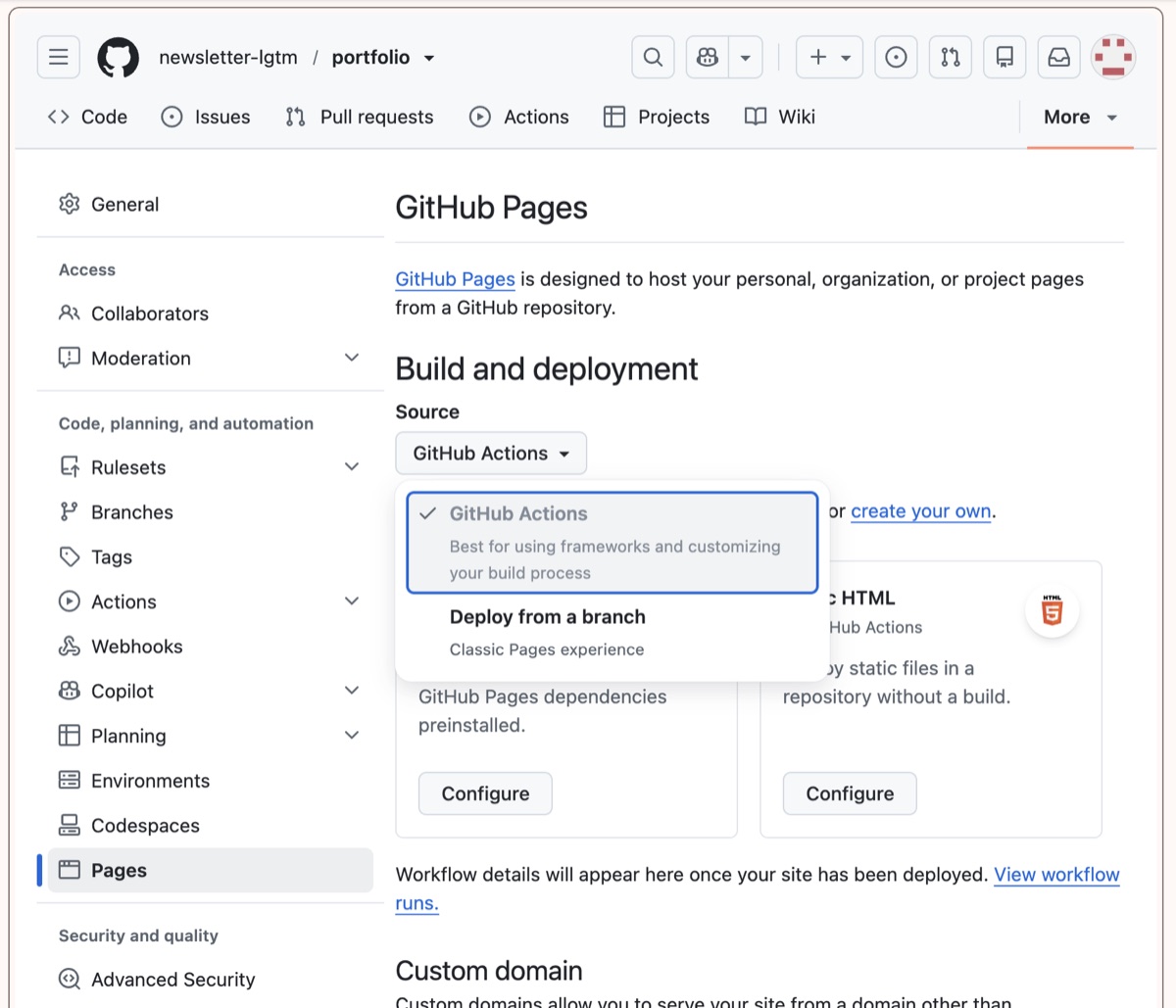
Step 3 on the repo's Settings page: Pages in the left menu, and under Source the choice GitHub Actions, not Deploy from a branch. The link View workflow runs below is where step 4 goes on. - Stay on this page and scroll down a little: under the two Configure cards, click the link View workflow runs. It opens the Actions tab, the one in the top row of your repo. Not Actions in the menu on the left: that only opens more settings. The list shows a run with a red cross, titled Initial commit. Leave it; the next step starts a new one.
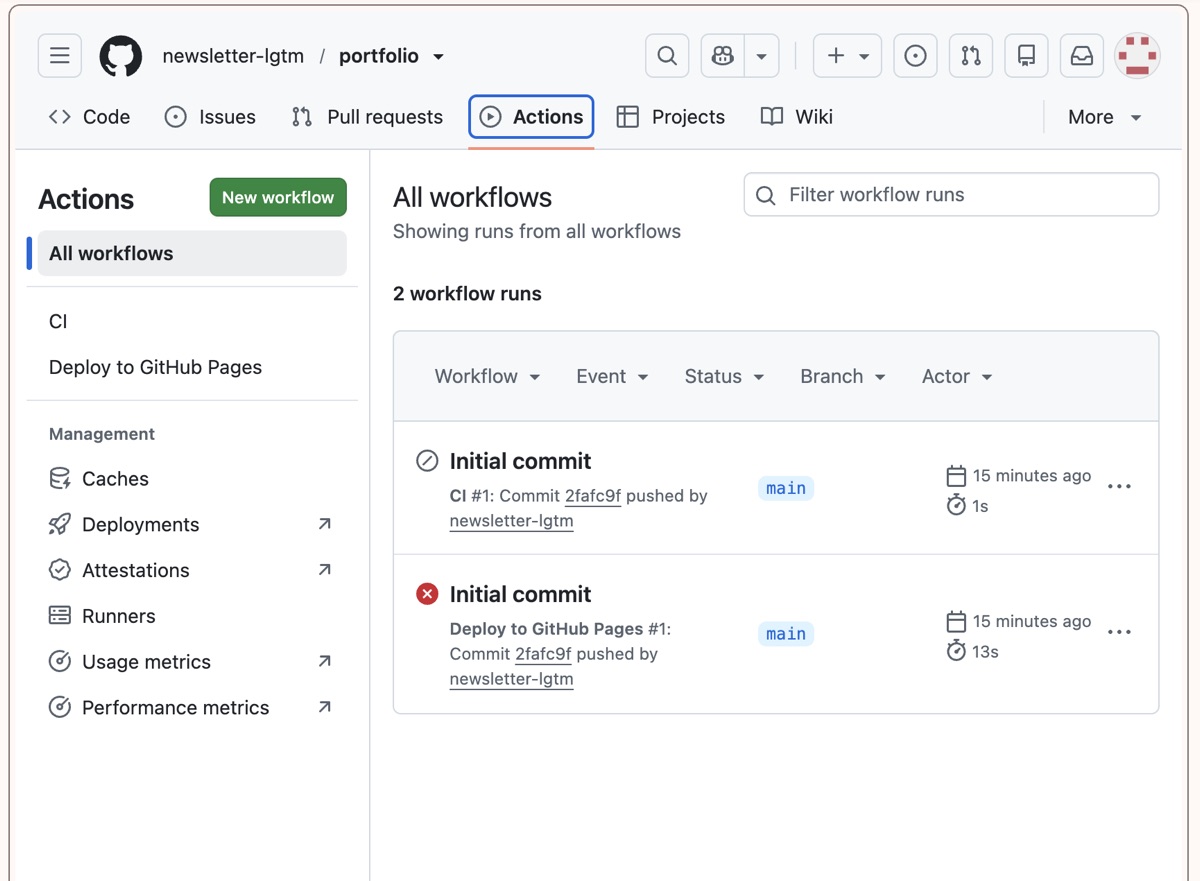
The Actions tab: the two runs on the right are both titled Initial commit; the one with the red cross belongs to Deploy to GitHub Pages. Step 5 uses Deploy to GitHub Pages in the column on the left. - In the column on the left, under All workflows, click Deploy to GitHub Pages. On the right, click the grey Run workflow button, then the green Run workflow button under it. A new run appears after a few seconds.
- Click the new run and wait for the green tick, usually under a minute. Ignore a yellow warning about Node.js or a notice about Ubuntu.
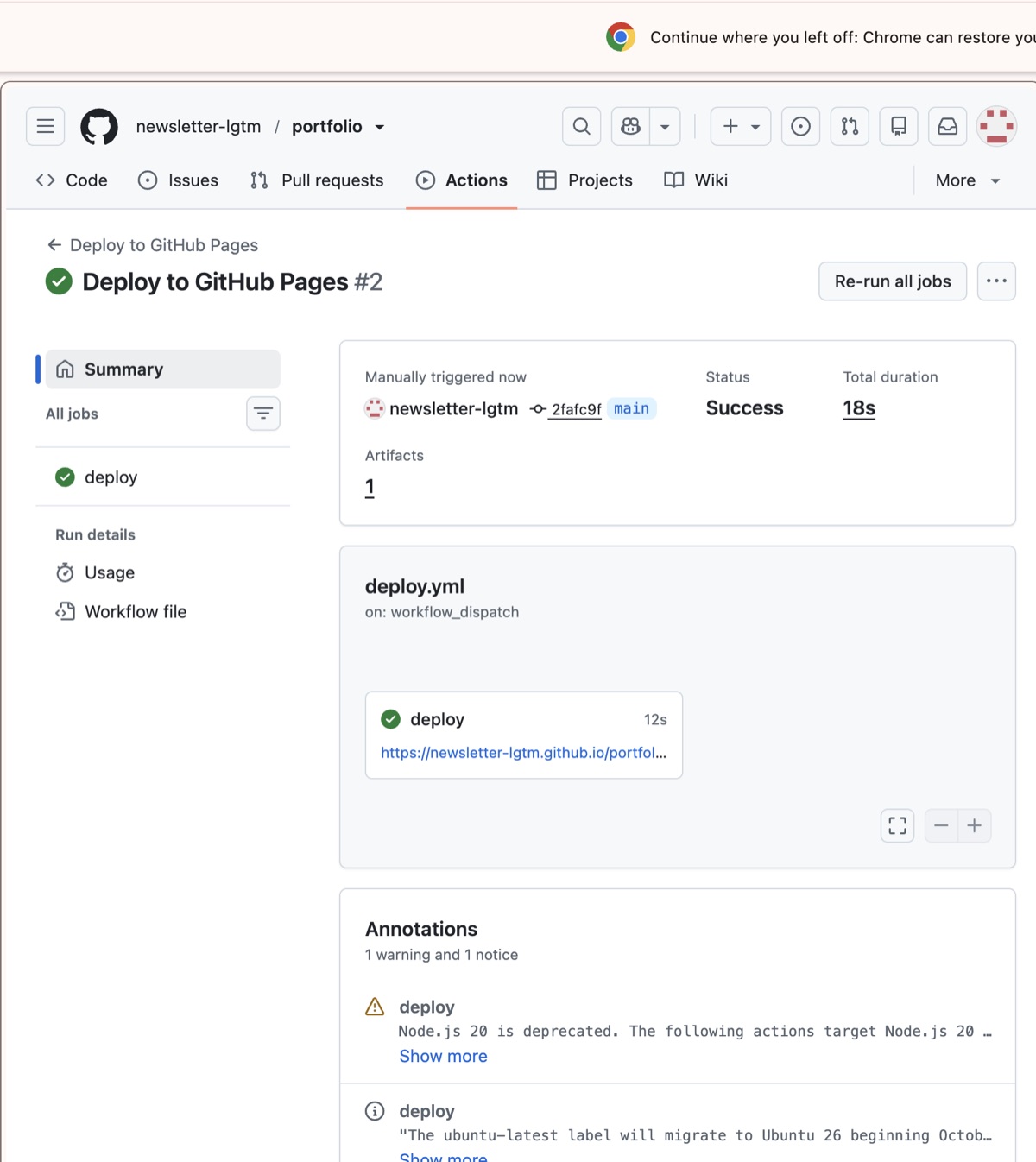
Done: Status Success, and the box named deploy holds the link to your site. The warning and the notice under Annotations change nothing. - Click that link, or open
https://YOUR-USERNAME.github.io/portfolio/in Chrome, with your own username.
You know it worked when you see the portfolio of Ada Example, a sample person. Your site is live.
Open Antigravity IDE 1:00 min
Open Antigravity IDE and check that your Google picture or initial shows in its top right corner: installed and signed in on the prep page, step 2. Not done yet? Do that step now; the prep page has every move for Mac, Windows and Linux, including the verification screen a new Google account can meet. Then come back here.
Linux: the Install script in the next step may say that Antigravity IDE is not installed. That to-do you may leave open.
Run the Install script 3:00 min
The Install script installs Git and Node where they are missing. It copies your repo into a folder portfolio in your home folder (the one with your Documents and Downloads) and opens it in Antigravity IDE.
- Quit Antigravity IDE completely: on a Mac press Cmd+Q; on Windows and Linux close its window. Left open, it would not find the Git and Node the script installs. The script opens it again.
- Open a terminal (the window where you type commands), paste the line for your system and press Enter.
The guide opened the tab for your system. Check that it is yours.
Open Terminal: press Cmd+Space, type Terminal and press Enter. Paste with Cmd+V.
curl -fsSL https://raw.githubusercontent.com/fabkrum/portfolio-template/main/install.sh | WORKSHOP_EVENT="DevFest Milano 2026" WORKSHOP_DATE=2026-10-10 WORKSHOP_CITY="Milan" WORKSHOP_START="" WORKSHOP_END="" shA window asks you to install the command line developer tools (Apple's package that brings Git)? Click Install, not "Get Xcode". When it is done, after five minutes or more on busy Wi-Fi, run the same line again.
No administrator password? Click Cancel. The script continues without Git, and at Ops you publish in the browser.
Open PowerShell: click Start, type PowerShell and open Windows PowerShell, not as administrator. Paste with Ctrl+V or a right-click.
$env:WORKSHOP_EVENT="DevFest Milano 2026"; $env:WORKSHOP_DATE="2026-10-10"; $env:WORKSHOP_CITY="Milan"; $env:WORKSHOP_START=""; $env:WORKSHOP_END=""; irm https://raw.githubusercontent.com/fabkrum/portfolio-template/main/install.ps1 | iexWindows asks whether to allow an installer to make changes? Click Yes.
No administrator password? Click No, each time it asks. The script continues without Git, and at Ops you publish in the browser.
Open Terminal: on Ubuntu press Ctrl+Alt+T, or find Terminal in your app menu. Paste with Ctrl+Shift+V.
wget -qO- https://raw.githubusercontent.com/fabkrum/portfolio-template/main/install.sh | WORKSHOP_EVENT="DevFest Milano 2026" WORKSHOP_DATE=2026-10-10 WORKSHOP_CITY="Milan" WORKSHOP_START="" WORKSHOP_END="" shIt asks for your password? Type the one you use to log in to your laptop, and press Enter. Nothing appears while you type. No administrator rights? The script continues without Git, and at Ops you publish in the browser.
Only if it answers wget: command not found: use this line instead. It runs the same script.
curl -fsSL https://raw.githubusercontent.com/fabkrum/portfolio-template/main/install.sh | WORKSHOP_EVENT="DevFest Milano 2026" WORKSHOP_DATE=2026-10-10 WORKSHOP_CITY="Milan" WORKSHOP_START="" WORKSHOP_END="" shIt asks What is your GitHub username? Type it and press Enter.
What you see on a Mac (example)
Setting up your laptop for the portfolio workshop.
What is your GitHub username? luca-bianchi

Apps
  [ok]    Google Chrome is installed.
  [ok]    Antigravity IDE is installed.

Tools
  [ok]    Git is installed (git version 2.54.0 (Apple Git-157)).
  [ok]    Node is installed (v25.2.1).
          Downloading Chrome DevTools for agents for the QA role...
  [ok]    Chrome DevTools for agents is ready.

Your repo
  [ok]    Copied your repo to /Users/luca-bianchi/portfolio.
  [ok]    Saved your workshop in workshop.json: DevFest Milano 2026.
  [ok]    Opened your repo in Antigravity IDE.

Summary
Everything is ready.
Run this command again any time; it only does what is still missing.
You know it worked when the summary says Everything is ready. and Antigravity IDE opens your portfolio folder.
The summary says Still to do? Do each numbered item, then run the same line again. Two to-dos you may leave open: Antigravity IDE is not installed when you did install it, and Git without administrator rights. Stuck? says what to do instead.
Open your repo in Antigravity IDE 1:00 min
Usually the Install script has opened it for you: your files on the left, such as AGENTS.md, site and tools, and the agent panel on the right.
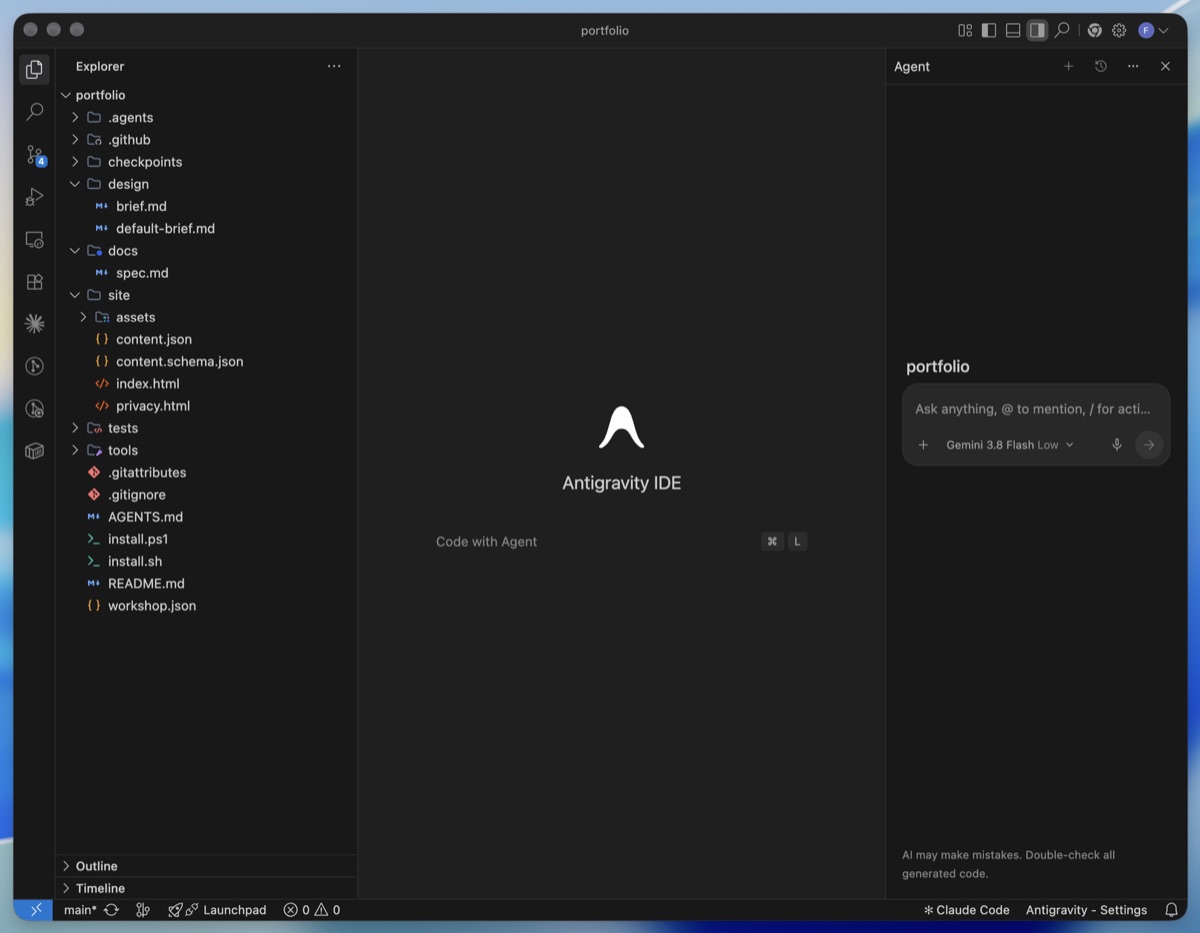
AGENTS.md is in the list. If the title shows another folder, such as tools, open the folder portfolio as below. The model name sits at the bottom of the chat box; the next step uses it.Not open? Start Antigravity IDE, choose File → Open Folder and pick the folder portfolio in your home folder:
In the dialog, press Cmd+Shift+H: it jumps to your home folder. Click portfolio, then Open.
Click into the address bar at the top of the dialog, type %USERPROFILE%\portfolio and press Enter. Then click Select Folder.
In the dialog, click Home, then portfolio, then Open.
Antigravity IDE asks whether you trust the authors of the files in this folder? Say yes: it is your own repo.
Pick the smallest Gemini Flash model 1:00 min
The model is the AI behind the agent.
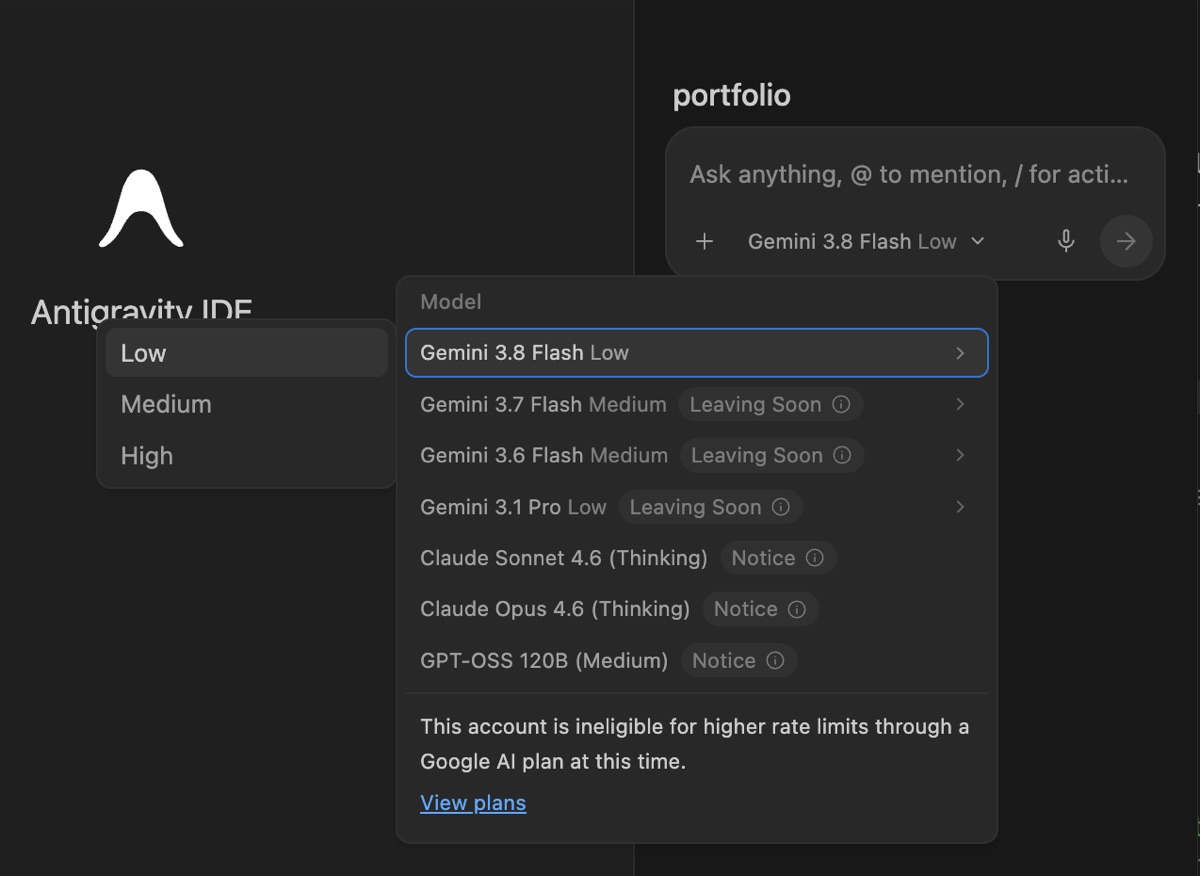
- In the agent panel, click the model name at the bottom of the chat box.
- In the list, click Gemini 3.8 Flash. A small menu opens next to it with Low, Medium and High: pick Low. Not Gemini 3.1 Pro, and not one of the Claude or GPT-OSS models.
You know it worked when the chat box says Gemini 3.8 Flash Low. Often it already does: then there is nothing to change.
Check that you are ready 1:30 min
Confirm each point
- Your site shows Ada Example at
https://YOUR-USERNAME.github.io/portfolio/. - The Install script ended with Everything is ready., or only the to-dos you may leave open are left: Antigravity IDE when you did install it, or Git without administrator rights.
- Antigravity IDE shows your
portfoliofolder, withAGENTS.mdin the file list. - You are signed in to Antigravity IDE with your personal Google account.
- The model name in the chat box says Gemini 3.8 Flash.
Stuck?
Copy the exact error message into Gemini and ask what to do. Once Antigravity IDE runs, ask its agent instead: in a chat, type Where am I? Still stuck? Ask your neighbour, or raise your hand. These are the usual problems:
"I could not find your repo at https://github.com/…"
Cause: the username is wrong, or the repo is not called portfolio, or it is private.
Fix: open your repo on GitHub and check two things: its name is portfolio, and it is Public. Then run the Install script again.
GitHub says you already have a repository called portfolio
Fix: rename the old one first. Open it on GitHub, click Settings, change Repository name to, for example, portfolio-old, and click Rename. Then copy the Template repo again.
"That does not look like a GitHub username"
Fix: run the line again and type only your username, for example luca-bianchi, without spaces.
"… is not recognized as an internal or external command" on Windows
Cause: you are in Command Prompt, not PowerShell.
Fix: click Start, type PowerShell, open Windows PowerShell and paste the Windows line there.
"A parameter cannot be found that matches parameter name" or "'sh' is not recognized" on Windows
Cause: you pasted the Mac or the Linux line. They do not work on Windows.
Fix: open the Windows tab in Run the Install script and paste its line, the one that starts with $env:, into Windows PowerShell.
"command not found: wget" or "curl: command not found"
Cause: the line is for another system, or your system lacks the download tool it uses.
- Mac,
zsh: command not found: wget: that was the Linux line. Paste the one from the Mac tab. - Linux,
curl: command not found: that was the Mac line. Paste the one from the Linux tab. - Linux,
wget: command not found: your system lacks wget. Paste the second line in the Linux tab.
The script says Antigravity IDE is not installed, but you installed it
Cause: you installed Antigravity 2.0 instead (the script then says so), or Antigravity IDE sits in a place the script does not look.
Fix: have you got Antigravity 2.0? Download and install Antigravity IDE. On a Mac, drag Antigravity IDE into Applications if it is still in Downloads. Then run the line again. Is this the only to-do, and does Antigravity IDE open when you start it? Then you are ready: open your repo yourself, as in Open your repo in Antigravity IDE.
An administrator password you do not have, or "Git could not be installed"
Cause: installing Git needs administrator rights. A work or school laptop often does not give them to you.
Fix: click No on Windows or Cancel on a Mac. The script downloads your repo without Git, and every Block works. If Git is the only to-do left, you are ready. At Ops you publish in the browser: see If something goes wrong on the Ops page.
"command not found: node" or "node is not recognized"
Cause: the terminal was open while Node was installed.
Fix: close the terminal and open a fresh one. In Antigravity IDE, quit the app completely and open it again.
"There is already a folder … portfolio, and it is not your portfolio repo"
Fix: rename or move that old folder, then run the Install script again.
Antigravity IDE does not let me sign in
Cause: usually a work or school account, the age check, your region, or a used-up quota.
Fix: sign in with a personal Google account. If that does not help, pair with your neighbour: see If Antigravity IDE does not work for you.
My site shows "404" or nothing
Fix: wait a minute and reload. On a new GitHub account, the first publish can need as long as ten minutes. Check that Settings → Pages → Source says GitHub Actions and that the newest Deploy to GitHub Pages run in the Actions tab has a green tick.
If Antigravity IDE does not work for you
You still leave with your own repo and your own live site: you follow the Roles on your neighbour's laptop, and one command per Block keeps your laptop in step with the room.
- Tell the Instructor.
- Run the Install script anyway, as in Run the Install script, and ignore its to-do about Antigravity IDE. It copies your repo into the folder
portfolioin your home folder. - Open a terminal in that folder. Open a fresh terminal: Terminal on a Mac and on Linux, Windows PowerShell on Windows. Paste this (Cmd+V on a Mac, Ctrl+V on Windows, Ctrl+Shift+V on Linux) and press Enter. It prints nothing; the line before the cursor now ends in
portfolio.
Terminal · same on Mac, Windows and Linux
cd portfolio- Sit with your neighbour. In every Block, follow the Role on their laptop: read each read-back with them and help them decide.
- In the Analyst Block, write your content by hand. Open
site/content.jsonin a plain text editor:
In Finder, press Cmd+Shift+H, then open portfolio and site. Right-click content.json, then Open With → TextEdit. In TextEdit, untick Edit → Substitutions → Smart Quotes, so your quotes stay straight.
In File Explorer, type %USERPROFILE%\portfolio\site into the address bar and press Enter. Right-click content.json, then Open with → Notepad.
In Files, open Home, then portfolio and site. Right-click content.json, then Open With → Text Editor.
Replace Ada Example's words between the quotes with yours, from your name down to your CV: her pitch, highlights, availability, city and languages too. Leave the words before each colon as they are, and keep mailto: in front of your email address. A project needs a link to its GitHub repo. No such project yet? Delete everything between the square brackets after "projects":, so the line reads "projects": []. Save the file, then check it:
Terminal · same on Mac, Windows and Linux
node tools/check-content.mjsIt names what to fix, such as a missing comma. Fix it, save, and run the check again until it says site/content.json is ready.
- Each time a Block's time is up, run the room's checkpoint on your own laptop, with the Block that has just ended. After the Analyst Block, that is:
Terminal · same on Mac, Windows and Linux
node tools/checkpoint.mjs analystAfter the next Blocks, replace analyst with designer, developer and qa. The Developer's checkpoint writes your legal page too.
- In the Ops Block, publish by hand. Paste these commands one at a time, press Enter after each, and read what it prints before the next.
See what would be published. Only files in site/, and maybe design/brief.md or docs/spec.md, belong in the list. Move anything else, such as a CV, out of the folder first:
Terminal · same on Mac, Windows and Linux
git statusAdd the changes:
git add -ASave them in a commit:
git commit -m "Publish my portfolio"It says Please tell me who you are? Then run these two, with your GitHub username in place of YOUR-USERNAME, and the commit again:
git config user.name "YOUR-USERNAME"git config user.email "YOUR-USERNAME@users.noreply.github.com"Send the commit to GitHub. The first time, GitHub asks you to sign in. On Windows, click Sign in with your browser. On a Mac or Linux, type your GitHub username at Username. At Password, paste a token, made as in step 3 of the Mac tab in Sign in if GitHub asks.
git pushWait until your site is online:
node tools/live.mjsDone when it prints Your site is live, and your address shows your name.