QA: check the site
- Role
- QA
- Outcome
- Your site, checked and fixed, legal page included
- Time box
- 10 minutes
QA finds what is wrong with your site, explains it in plain words, fixes it and proves each fix. It checks the look, accessibility (whether everyone can use the site), how fast it loads on a phone, and your legal page.
Get ready 1:00 min
QA lists what is wrong with your site, fixes it and shows the evidence for each fix. Your part: read its findings, and ask for the evidence when it does not show it.
Work with QA 5:00 min
QA leads you through this Block in the chat and says when it is done. Read this part first, then start QA at its end, under Now start QA. Keep this page open next to the chat.
Let it look and audit
QA works for a few minutes. It takes screenshots of your pages, measures your home page on a slow phone connection and runs the Check (the script that tests your site). Your part:
- Allow its
node tools/commands with Yes, and always allow … in this project. Antigravity also asks before Chrome's developer tools run: allow them too. If they do not start on your laptop, QA works without them. - Read its findings. Before QA changes anything, it lists them in plain words: what is wrong and where, who it hurts, and how it will fix it.
Then it fixes one finding at a time and shows the evidence for each fix. It also reports two numbers: LCP, how long until the main content shows (good: 2.5 seconds or less), and CLS, how much the page jumps while it loads (good: 0.1 or less).
Now start QA
- In Antigravity IDE, start a new chat: click the + at the top right of the agent panel, not the one in the chat box.
- Check the model name at the bottom of the chat box: it says Gemini 3.8 Flash. If not, click it and pick Gemini 3.8 Flash.
Then type:
Agent chat
Start the QA step.When QA says it is done, check its work yourself in Check and accept below.
Check and accept 4:00 min
Run the Check yourself
Even if QA says everything passes, run the Check yourself: an agent can say "fixed" without checking. Open a terminal in Antigravity IDE with the menu Terminal → New Terminal. Paste this (Cmd+V on a Mac, Ctrl+V on Windows, Ctrl+Shift+V on Linux) and press Enter:
Terminal · same on Mac, Windows and Linux
node tools/check.mjsIt prints one line per item, PASS or NEEDS ATTENTION:
What you see (the end of it)
  PASS             Content file matches the schema
  PASS             Accessibility (the axe rules Lighthouse scores)
  PASS             No errors in the browser console
  PASS             What an agent sees: your content without JavaScript
  PASS             Legal page written

5 of 5 items pass.
This Check only reports. It never stops you from publishing.
Two more lines after it, starting with Clock: and Pace:? That is QA's clock: how much time QA has left, for the agent. Nothing to do.
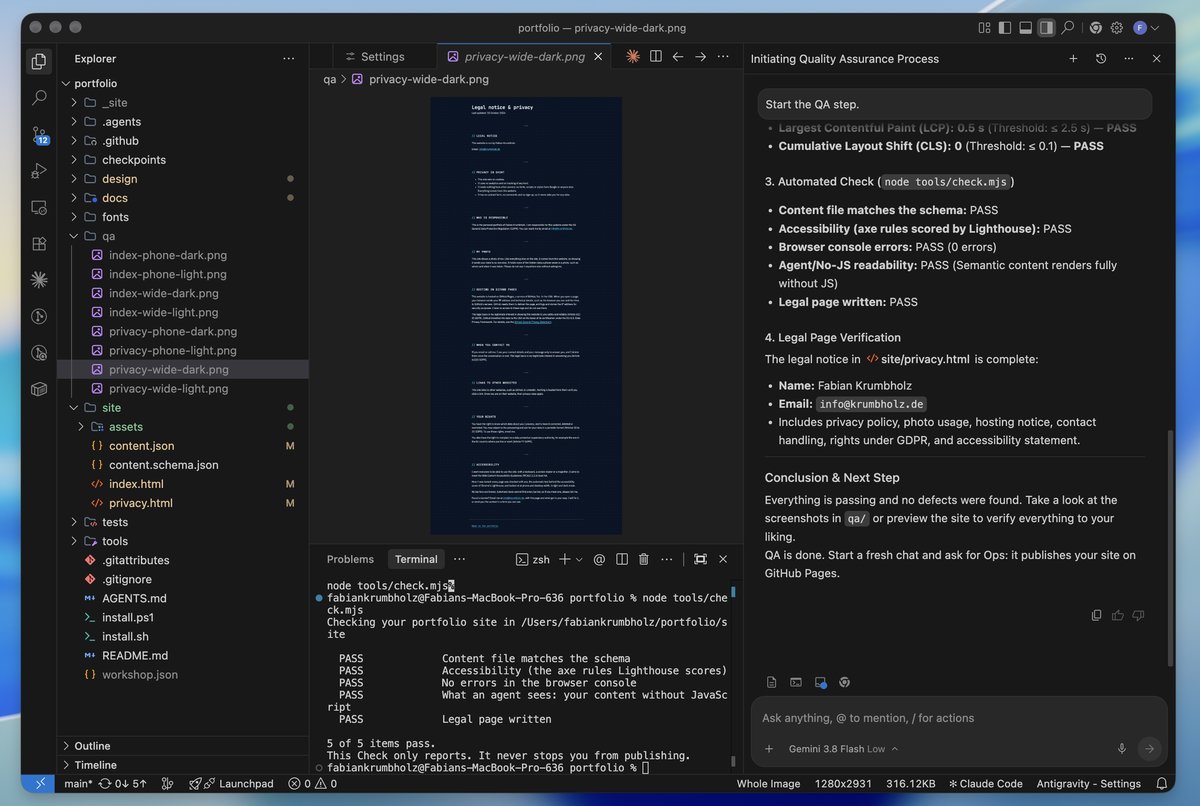
qa/ with the eight screenshots for the next part.Look at the screenshots
Open the folder qa/ in the file list of Antigravity IDE and click a screenshot, for example index-phone-dark.png. Text cut off, overlapping or hard to read? Tell QA in one sentence.
Read your legal page
In the preview, click Legal notice & privacy at the bottom of your site (Note legali e privacy on an Italian site). The page has three parts: a legal notice (who runs the site and how to reach them), a privacy notice and an accessibility statement. It is not legal advice: for a site that sells services, have it checked by someone who knows the law in your country.
- Are your name and email address right? And the address, VAT number and phone number, if you gave them to the Analyst? Check the phone number digit by digit.
- Does the accessibility statement say that no barriers are known, or name the ones QA found?
- Anything on the page you do not want there? Tell QA in one sentence: it fixes the page. A missing email address belongs to the Analyst, in a fresh chat.
If something goes wrong
Ask your agent first. In a fresh chat, type the question below: it reads your repo and tells you what is done and what comes next. Got an error message? Paste it into the chat.
Agent chat
Where am I?"Google Chrome was not found"
Fix: install Chrome from google.com/chrome, then run the command again.
"Cannot find module" when you run the Check
Cause: the terminal is not in your portfolio folder.
Fix: open the terminal from Antigravity IDE with Terminal → New Terminal; it starts in the right folder.
QA goes round in circles on one finding
Fix: after two attempts, stop it. Start a fresh chat, type Start the QA step. again and name the one finding to fix.
Fell behind?
The QA Block's time is up and QA is not done? Look at your page in the preview first.
- Your page works? You need no checkpoint. Accept the fixes QA has shown you, start a fresh chat and ask for Ops.
- Your page is broken or missing? Run the QA checkpoint. It keeps your own content file, design brief and spec. It also resets your page to a ready-made one in the colours and fonts of your brief: what your own Developer and QA built is lost.
- Stop the agent in your old chat if it is still working: click the round button with the red square in the chat box.
- In Antigravity IDE, open a terminal with the menu Terminal → New Terminal. Paste this command (Cmd+V on a Mac, Ctrl+V on Windows, Ctrl+Shift+V on Linux) and press Enter:
Terminal · same on Mac, Windows and Linux
node tools/checkpoint.mjs qaUse the Block that has just ended, not the one that starts now.
It lists what it kept and what it changed, and ends with what to do next. Nothing to change means you were already there. Two Blocks behind? This one checkpoint includes the earlier Blocks.
Or start a fresh chat and let the agent run it:
Agent chat
Catch me up: the room just finished the QA block.