Analyst: collect your content
- Role
- Analyst
- Outcome
- Your content file and a short spec
- Time box
- 15 minutes
The Analyst collects what your site will say and writes it into two files: your content file, site/content.json, and a short spec, docs/spec.md.
Get ready 3:00 min
Have these at hand before you start. The prep page asked you to gather them at home: open your CV or LinkedIn PDF and your notes.
- Your content, one of these: your LinkedIn profile open in Chrome, your LinkedIn PDF or your CV as a file, or nothing at all for an interview. Keep the file outside your
portfoliofolder. - Your goal: a job, freelance clients, speaking invitations or a community, and from when you are available.
- Your projects: the link to each one's GitHub repo. A project without one is left out. None on GitHub yet? You skip that question.
- Your links: where people find you online, and the email address visitors may see. A phone number only if you want calls, for example from recruiters. Does your site offer services, for example to freelance clients? Then also a postal address, and in Italy your Partita IVA.
- A photo, if you want one: a real, well-lit photo of your face, as a JPEG. An iPhone saves HEIC files: If something goes wrong says how to make a JPEG.
Work with the Analyst 10:00 min
The Analyst leads you through this Block in the chat, one question at a time, and says when it is done. Read this part first, then start the Analyst at its end, under Now start the Analyst. Keep this page open next to the chat.
Give it your content
Pick one way.
- Open your LinkedIn profile in Chrome.
- Click see more in your About section, so the whole text shows.
- Select everything from your name down to the end of your profile: Experience, Education, Licenses & certifications, Volunteering, Skills and Languages. Copy it.
- Paste it into the agent chat and send it.
The copy also picks up LinkedIn's own lines, such as notifications. The Analyst leaves them out; for a cleaner start, take the LinkedIn PDF.
- Open your LinkedIn profile in Chrome.
- Under your name, click Resources (on some profiles More), then Save to PDF. Chrome saves the PDF in your Downloads folder.
- Drag the PDF into the agent chat and send it.
The Analyst cannot read the file? Take the LinkedIn text instead.
- Drag your CV file, for example a PDF, into the agent chat.
- Send it.
Leave the CV file outside your portfolio folder.
The Analyst cannot read the file? Open the CV, copy all its text and paste it into the chat instead.
Type:
Agent chat
interviewFrom a LinkedIn text, a PDF or a CV, the Analyst first lists what your page would show and what is still missing. Say yes, or tell it what to change or leave out: what you remove stays off your site.
Answer its questions
It asks only what your content did not say: your site's language, your goal, your projects and your links. Answer each in a sentence or two, or say skip to leave one out. Left out your email address? It asks once more.
Allow its commands
When the agent wants to run a command, Antigravity asks Allow running this command? where the chat box was. Read the command, then:
- It starts with
node tools/: pick Yes, and always allow … in this project and click Submit. That tool then runs without asking again. - It starts with
git: pick Yes, allow this time. - Anything else: pick No and ask: "What does this command do, and why?" If the answer makes sense, ask it to run the command again, and allow it.
Paste no password, key or other person's data into a chat.
Add your photo (optional)
At the end, the Analyst asks whether you want a photo of you on your site. No photo? Say no.
- In the chat box, click the +, then Media, and pick your photo.
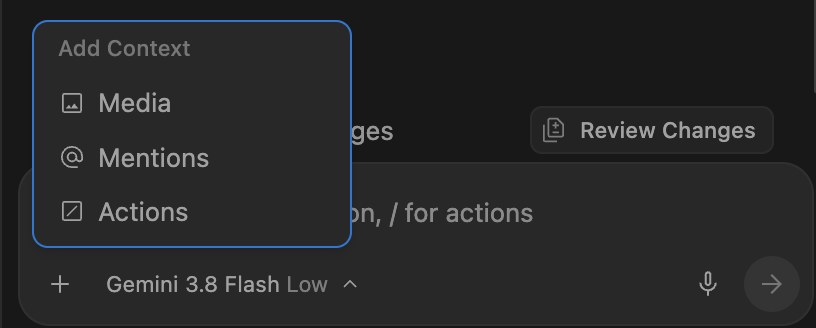
The + in the chat box opens Add Context: pick Media, then your photo. - Ask the Analyst to add the photo, say in a few words what it shows, and send it. For example: "Add this photo to my site. It shows me smiling in front of a bookshelf."
- If the Analyst asks you to delete a photo from your
portfoliofolder, do so.
You know it worked when the Analyst says Your photo is ready. The Analyst cannot find the photo? If something goes wrong shows the other way.
Now start the Analyst
- In Antigravity IDE, start a new chat: click the + at the top right of the agent panel, not the one in the chat box.
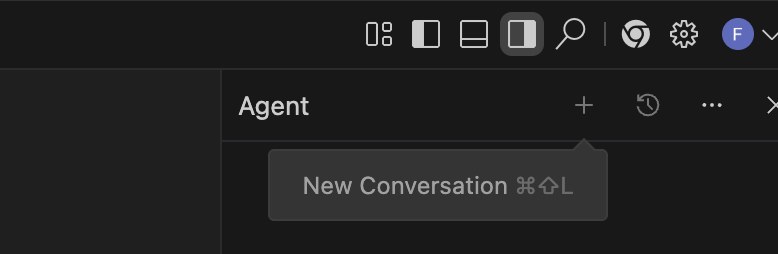
The + next to the clock, at the top right of the agent panel. Point at it, and it says New Conversation. - Check the model name at the bottom of the chat box: it says Gemini 3.8 Flash. If not, click it and pick Gemini 3.8 Flash.
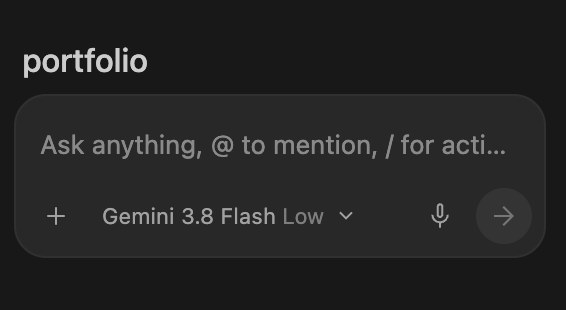
A new chat: an empty chat box, with Gemini 3.8 Flash Low at its bottom, the model from Setup. The + inside the chat box is not the one for a new chat.
Then type:
Agent chat
Start the Analyst step.You know it worked when the Analyst names three ways to start: your LinkedIn text, your CV or an interview.
When the Analyst says The Analyst is done, do not start the Designer yet: read and accept its two files first, in Read and accept below.
Read and accept 2:00 min
The Analyst writes your two files and checks the content file until it prints:
What the content check prints
site/content.json is ready: it matches the schema.Then it explains both files in plain words. Lines in the spec that start with "(a guess)" are its guesses, for example who your site is for. It also adds today's workshop to your site: as an event, and as a line at the bottom of your page. Want either gone? Say so.
If something goes wrong
Ask your agent first. In a fresh chat, type the question below: it reads your repo and tells you what is done and what comes next. Got an error message? Paste it into the chat.
Agent chat
Where am I?The Analyst asks two questions in one message, or more than eight
Fix: answer the first one and say "One question at a time, please." If it keeps going, say "Write the files with what you have."
The agent starts designing or building in the same chat
Fix: say "Stop. Only the Analyst in this chat." Then start a fresh chat for the next Role.
The Analyst cannot find the photo you attached
Fix: copy the photo file into your portfolio folder:
In Finder, click your photo and press Cmd+C. Press Cmd+Shift+H (or menu Go → Home), open portfolio and press Cmd+V. Photo in the Photos app? Drag it onto the Desktop first.
In File Explorer, click your photo and press Ctrl+C. Click into the address bar, type %USERPROFILE%\portfolio, press Enter, then press Ctrl+V.
In Files, click your photo and press Ctrl+C. Open Home, then portfolio, and press Ctrl+V.
Then tell the Analyst the file's name and what the photo shows, for example "me.jpg, smiling in front of a bookshelf." When it says Your photo is ready, delete the photo you copied into your portfolio folder, as it tells you.
The photo tool cannot read your photo
Cause: iPhones save photos as HEIC files, which the tool cannot read. Or the file name has a typo.
Fix: save the photo as JPEG first. On a Mac, open it in Preview, choose File → Export and pick JPEG. On Windows, open it in Photos, choose Save as and pick JPEG. Attach the JPEG instead, or give the Analyst its file name, spelled exactly.
My CV file is inside the portfolio folder
Fix: move it out of the folder, for example to your Documents folder:
In Finder, press Cmd+Shift+H (or menu Go → Home), then open portfolio. Drag the CV file onto Documents in the sidebar.
In File Explorer, click into the address bar, type %USERPROFILE%\portfolio and press Enter. Drag the CV file onto Documents in the left pane.
In Files, open Home, then portfolio. Drag the CV file onto Documents in the sidebar.
Fell behind?
The Analyst Block's time is up and you are not done? Run its checkpoint. It brings your repo to where the room is, and keeps your own content file, design brief and spec.
- Stop the agent in your old chat if it is still working: click the round button with the red square in the chat box.
- In Antigravity IDE, open a terminal with the menu Terminal → New Terminal. Paste this command (Cmd+V on a Mac, Ctrl+V on Windows, Ctrl+Shift+V on Linux) and press Enter:
Terminal · same on Mac, Windows and Linux
node tools/checkpoint.mjs analystUse the Block that has just ended, not the one that starts now.
It lists what it kept and what it changed, and ends with what to do next. Nothing to change means you were already there.
Or start a fresh chat and let the agent run it:
Agent chat
Catch me up: the room just finished the Analyst block.No content of your own yet? Your site keeps the sample person, Ada Example, so you can follow the next Blocks.