Four steps on your laptop before the workshop, about 20 minutes. Do them at home, and you start building the moment the talk ends.
AI-Native Web Development, Hands-On: you build your own portfolio site with AI agents and publish it, live, with your name on it. No time for all of it? Do steps 1 and 2 at least, and come anyway: the workshop guide has every step, and helpers in the room help you finish.
A laptop you can install apps on: Mac, Windows or Linux
Its charger
1A personal Google account4:30 min
The agent's AI runs on the free weekly quota that comes with a Google account, and the Antigravity CLI signs you in with it. It has to be a personal account, for example a Gmail address: a work or school account may be blocked, and you have to be 18 or over.
You have one? Go to step 2.
You have none, or only a work or school one? Create one. You need an email address and your phone: Google checks both with a code, one by email and one by text message. Click Next after each screen.
Enter a personal email address you already use, not your work or school one. Type in the code Google sends to it.
Choose a password and type it twice.
Enter your phone number, then the six-digit code from the text message. Check the flag in front of the number first: it sets your country code.
On Get more from your number, click Skip.
On Choose your settings, keep Choose in 1 step and click Next. Then click Accept all or Reject all: either works for the workshop.
Click I agree.
Done when the Google Account page opens with your name, and your initial shows in the top right corner.
2A GitHub account1:00 min
GitHub will hold your site's files and publish your site for free. It needs a free account.
You have one? Sign in once at github.com/login, so you know your password works.
You have none? Create one with your Google account from step 1: no password, no email code, one minute.
Open github.com/signup and click Continue with Google, the first button. Pick your personal Google account from step 1.
GitHub fills in your email. Choose your username with care: it becomes part of your site's address, https://USERNAME.github.io/portfolio/. Pick one you are happy to show an employer.
Check your country, then click Create account.
Done when GitHub greets you with Welcome to GitHub and your username, and your profile picture shows in the top right corner of github.com.
3One line: your tools and your agent5:00 min
One line in the terminal does the rest. It installs what the agents need where it is missing (Git, Node, the GitHub CLI and the Antigravity CLI), signs you in to GitHub, and starts the Antigravity CLI once, so you can sign in there too. Your own repo, the project folder for your site, comes in the workshop: the guide gives you one more line there. The script is public, so you can read it first: install.sh and install.ps1.
Open a terminal, the window where you type commands, and paste the line for your system. The page opened the tab for your system: check that it is yours.
Windows
Click Start, type PowerShell and open Windows PowerShell, not as administrator, and not Command Prompt.
Click Copy under the line, click into the blue PowerShell window, paste with a right-click or Ctrl+V, and press Enter.
Windows asks whether to allow an installer to make changes? Click Yes.
Mac
Press Cmd+Space, type Terminal and press Enter.
Click Copy under the line, click into the Terminal window, paste with Cmd+V, and press Enter.
curl -fsSL https://raw.githubusercontent.com/fabkrum/portfolio-template/main/install.sh | WORKSHOP_PREP=1 sh
A window asks you to install the command line developer tools (Apple's package that brings Git)? Click Install, not "Get Xcode". When it is done, after five minutes or more, paste the same line again.
Linux
On Ubuntu press Ctrl+Alt+T, or find Terminal in your app menu.
Click Copy under the line, click into the Terminal window, paste with Ctrl+Shift+V, and press Enter.
wget -qO- https://raw.githubusercontent.com/fabkrum/portfolio-template/main/install.sh | WORKSHOP_PREP=1 sh
It asks for your password? Type the one you use to log in to your laptop and press Enter: nothing appears while you type.
Sign in to GitHub
The terminal shows a code of eight characters, such as ABCD-1234, and your browser opens github.com/login/device. The browser does not open? Open https://github.com/login/device yourself.
Type the code on that page and click Continue.
On the next page, click Authorize. The page then says your device is connected, and the terminal goes on by itself.
The browser shows another GitHub account, or only your work one? Open https://github.com/login/device in another browser, such as Safari or Firefox, sign in there with your own GitHub account, and type the code.
Then the script reports, line by line, what is done ([ok]) and what is still to do ([to do]). The summary says Still to do? Do each numbered item, then paste the same line again: it only does what is still missing. It says to open a new terminal window? Close this one, open a new one, and paste the line there.
Sign in to the Antigravity CLI
When everything is ready, the Antigravity CLI starts and asks four things. Use the arrow keys and Enter:
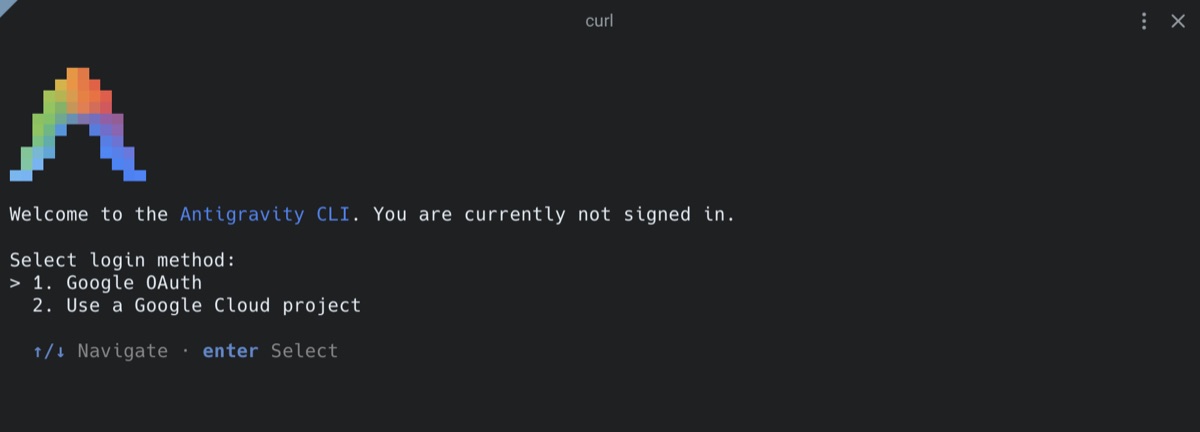
Select login method: keep Google OAuth and press Enter.
The first start: Google OAuth is already selected.
Your browser opens Google's sign-in: sign in with your personal Google account from step 1. The browser does not open? The terminal shows a link: copy it into your browser.
The browser page shows a code and asks you to paste it into your application? Click Copy to Clipboard. Then click into the terminal, paste, and press Enter.
Terms of Service & Data Use: the box is optional, and Enter ticks it. Press ↓ until Done is highlighted, then press Enter.
Choose your color scheme: press Enter, or pick another first. The box on the right is only a preview of the colours.
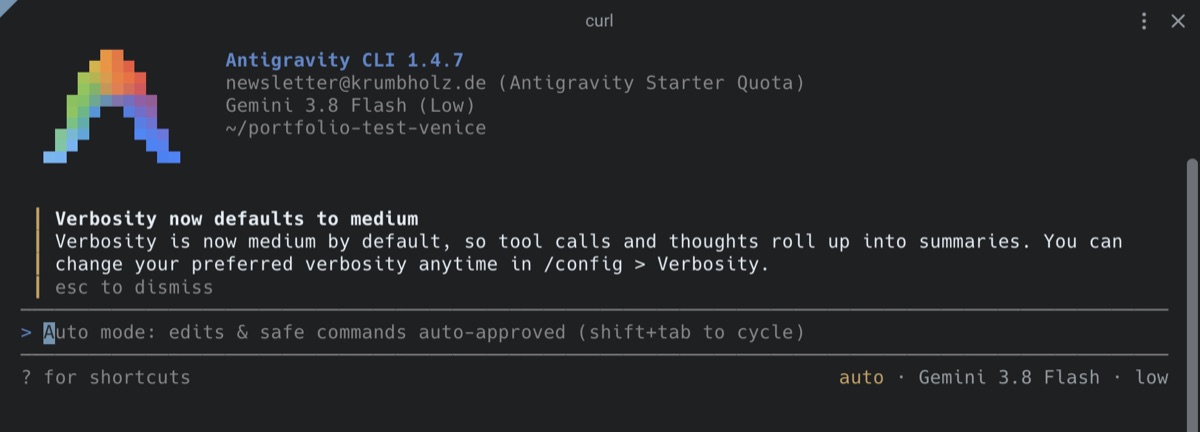
Ready: your Google account, Gemini 3.8 Flash (Low) and your own folder at the top (here a test one), auto · Gemini 3.8 Flash · low at the bottom. The grey text after > is only a hint; a notice box goes away with Esc.
Done when the Antigravity CLI looks like this. Type /exit and press Enter: you are signed in, and it stays that way. Signed in already from an earlier run? Then the script says Everything is ready. and starts nothing.
The Antigravity CLI will not run on your laptop, or your account is refused (age, region, a work account)? Come anyway: you pair with a neighbour in the workshop and still leave with your own repo and your own live site.
4Your content, ready for the Analyst8:00 min
In the workshop the first agent, the Analyst, writes what your site says. It is quick when you bring your content, and slow when it has to interview you. Put these into one folder outside portfolio, for example on your Desktop: everything in portfolio can become public.
Your CV or your LinkedIn profile as a PDF. LinkedIn: open your profile, click Resources (or More) under your name, then Save to PDF.
A short note, in any text editor, that answers what a CV does not say. Copy these lines and fill them in:
Site language: English
Goal: a job / freelance clients / speaking invitations / a community
Available from:
Projects (name, one sentence, link to the GitHub repo):
Links (GitHub, LinkedIn, blog):
Email address visitors may see:
Phone number, only if you want calls:
Only if you offer services: postal address, and in Italy your Partita IVA:
A photo, if you want one: a real, well-lit photo of your face, as a JPEG. An iPhone saves HEIC: open the photo, then Share, Options and Most Compatible, or take a screenshot of it.
Done when the folder has your CV or LinkedIn PDF and your note, and the photo if you want one. In the workshop you drag them into the Antigravity CLI's window for the Analyst.
✓Ready?
That's all. In the room, page 1 of the workshop guide gives you one more line: it makes your repo, puts your site on the web and starts the Antigravity CLI in it. Bring the laptop and the charger.